Before you steam ahead setting up your online store, here's some good-to-know information that will ensure you understand how online stores works in Ivorey™, and whether an online store is the right fit for your needs.
Online Stores allow you to sell products directly through your website without using external e-commerce platforms. They replace standalone shop tools by combining a product catalogue, store pages, cart, checkout and order management into your website builder. Customers can browse products, add them to a cart, check out securely and receive order confirmations all within your branded experience.
Digital or physical one-time products are best suited to an online store. We recommend selling any recurring products through a sales funnels. Click here to learn the 6 different ways to sell in Ivorey™.

An Ivorey™ online store is essentially a shop feature where you can add multiple products just like an e-commerce store. An online store allows customers to choose multiple products, add them to cart, and check out to purchase your products.
Follow these steps in order - we've linked every step and resource you'll need below. Open the first one in a new tab, and come back to this master guide which acts like your project plan, giving you everything you'll need along the way.
Yes, you absolutely can create multiple stores within Ivorey™
If you have two or more stores inside Ivorey™ you can select which products display in each store so you only display the products that are relevant to each individual store
Follow the steps below to make your products available for your online stores, and then update the product settings to select which products display in each store:
From the Ivorey™ main menu, go to [Payments] > then along the top menu bar click on [Products]
Click into each of your products that you want to display on ALL of your stores, and make sure 'Include in Online Store' is toggled on
Next to go to [Site Pages] > along the top menu bar click on [Stores] > click into your first store > then click on the [Products] tab
Here you will see a list of all the products that have been turned on for online stores. To exclude any products from your store, select each product you don't want to show in this store by clicking on the checkbox > then click the [Bulk Action] button at the top of your list > and select [Exclude from this Store]
You will now see your products filtered between the [Included] and [Excluded] tabs.
All products listed under the [Included] tab are the products that will display in this store
All the products listed under the [Excluded] tab are products that will not display in this store
Now you can go into your other Store/s and repeat Steps 3 > 5 to update which products display on each individual store
To see, track or manage your product inventory, go to [Payments] > along the top menu bar hover over [Payments] > then click [Inventory]
Here you will see all of your products listed, the available quantity, and the ability to toggle on or off if you want this product to 'continue selling when out of stock'
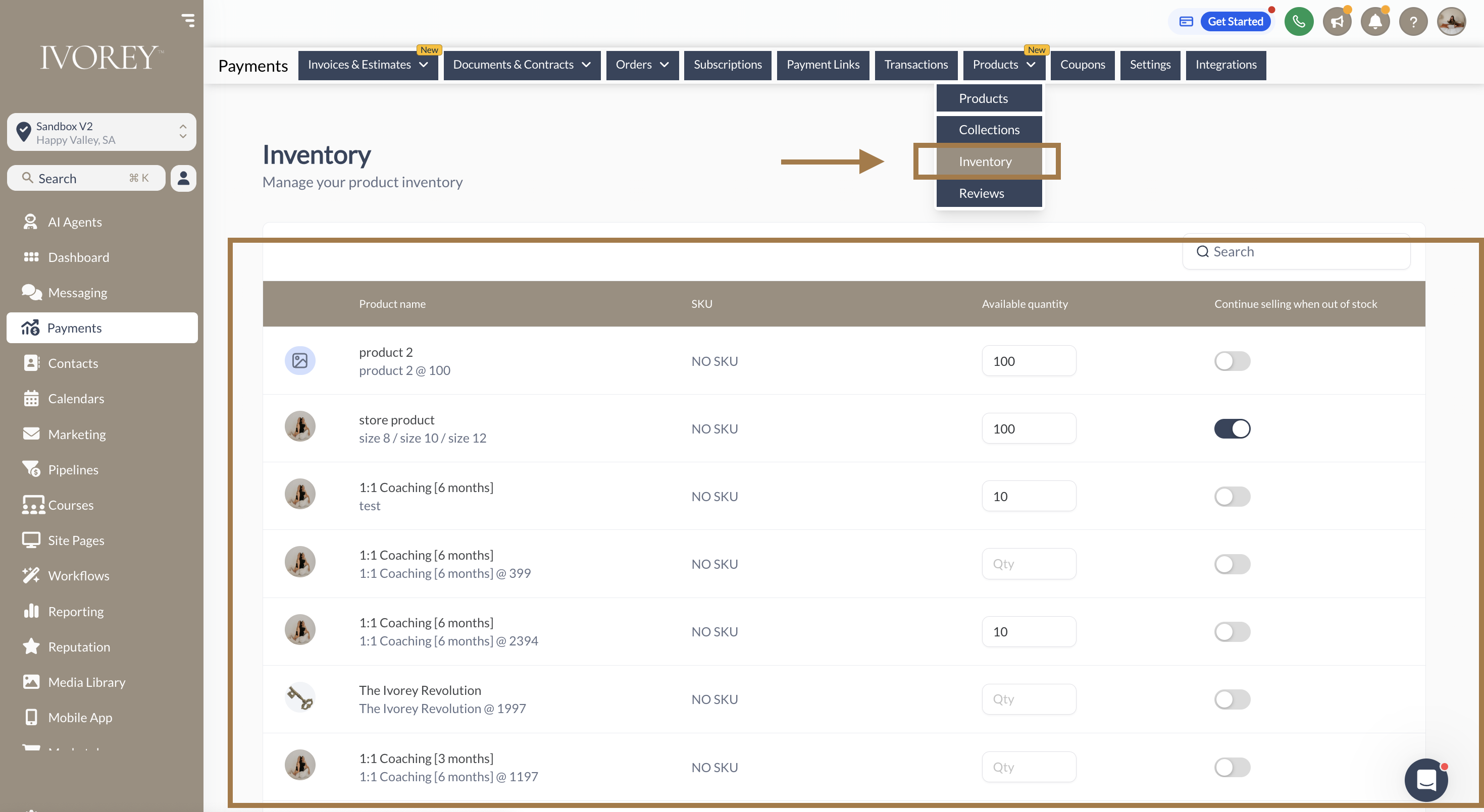
Note: Inventory tracking and management is currently available for products purchased through a payment link, online store, or order form. Currently inventory tracking is no available when selling products through an Invoice.
You can create collections to categorise your store products by adding your products to their relevant collection, and then adding the collections element to the top of your products list page. Follow the steps below to setup your collections for your online store:
Step 1: Create your collections:
Go to [Payments] > [Products] > [Collections]
Click [Create Collection]
Add your collection name and image > then click [Add] to create
Step 2: Add your products to your collections:
Go to [Payments] > [Products]
Click into your product > scroll down to 'Product Collection'
Select the collection you want to add your product to
Click [Save] at the top right of your screen to update your changes
Repeat this process for all products you want to categories according to collection
Step 3: Add the Collection element to your store:
Go to [site pages] > [store] > click into your store
Click [edit] on the 'Product List' page to open the site builder
Click the [+] icon at the top left of your page to open the elements menu
Scroll down to the 'Store' element category
Drag and drop the 'Collection List' element onto your page
Click [Save and Publish] to update
This will mean that when you are in live/preview mode, the collections will display at the top of the page for people to select from.
Yes! you can integrate your Shipstation to automate fulfilment of your online store in Ivorey™. See the guide for steps here.
Yes, you can view your products in a "spreadsheet-style" view for bulk editing. To do this, follow these steps:
Go to Products in your Ecommerce Store.
Select multiple products.
Click Bulk Edit from the action bar.
A spreadsheet-style view will open with all selected products.
Customise your columns, edit directly in cells, and hit Save when done.
Hit the support chat widget inside Ivorey™ - we can:
Upload the templates to your account
Walk you through any of the steps
Troubleshoot anything that’s not working
We’re here and ready to help via the chat widget in the bottom right of your Ivorey™ account. Or if you are looking for done-for-you support, you can browse our current services here 🤍
