Snippets in Ivorey™ let you save and reuse commonly used text blocks for emails and SMS so you can keep your messaging consistent, cut down on repetitive typing, and speed up your communication. By saving commonly used content as snippets, you can maintain brand consistency, reduce repetitive work, and speed up the email creation process across templates and campaigns.
This guide is perfect if you want to:
Save frequently used text for emails and SMS
Keep your messaging consistent across your team
Speed up replies and reduce manual communication work
Below are the written steps to follow to create a snippet:
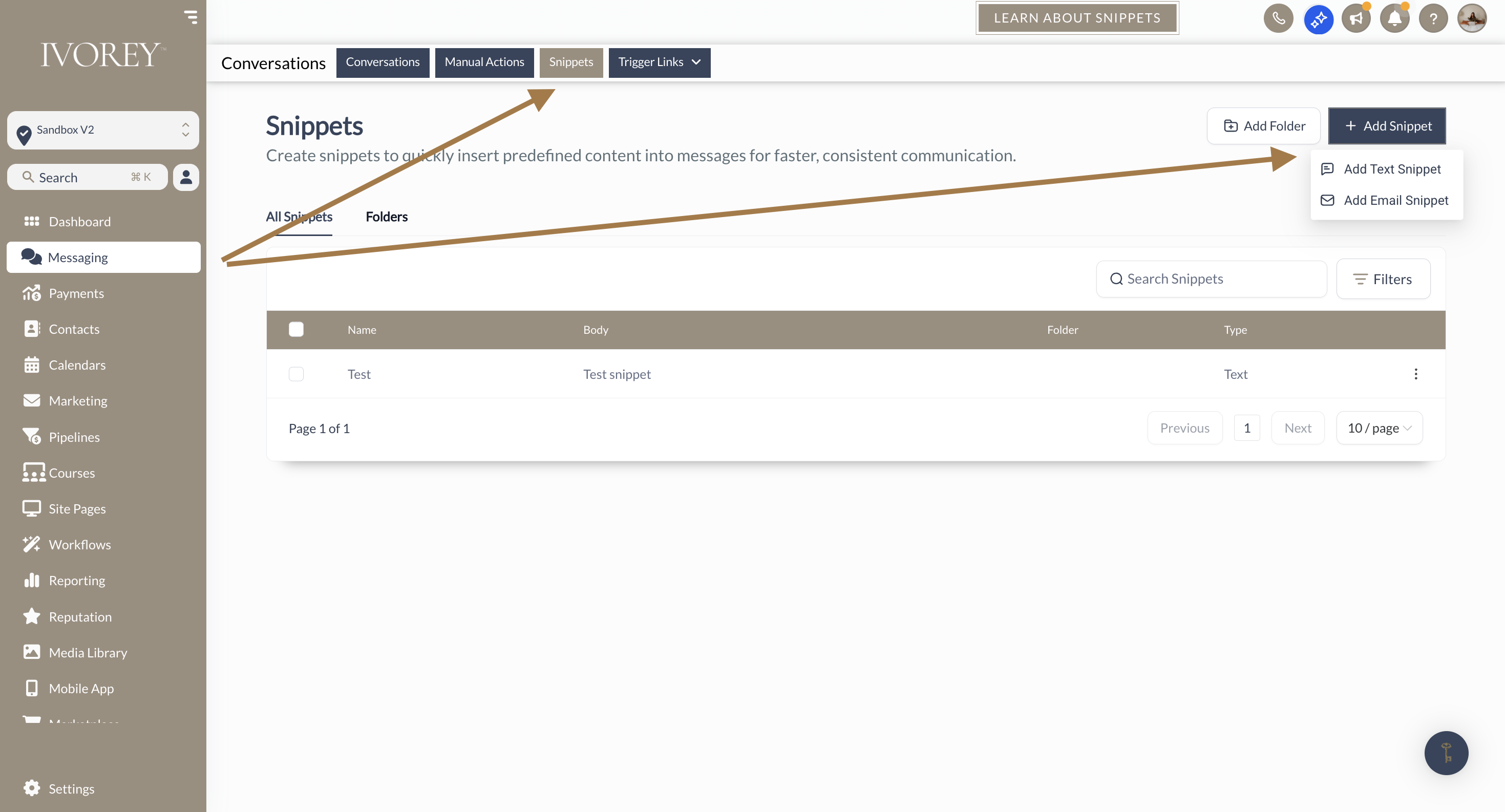
To create a snippet, from the Ivorey™ main menu, go to Messaging > then along the top menu bar click [Snippets] > then on the top right-hand corner click [+ New Snippet] > and select your snippet type:
Select 'Add Text Snippet' to create a snippet for SMS
Select 'Add Email Snippet' to create a snippet for Email
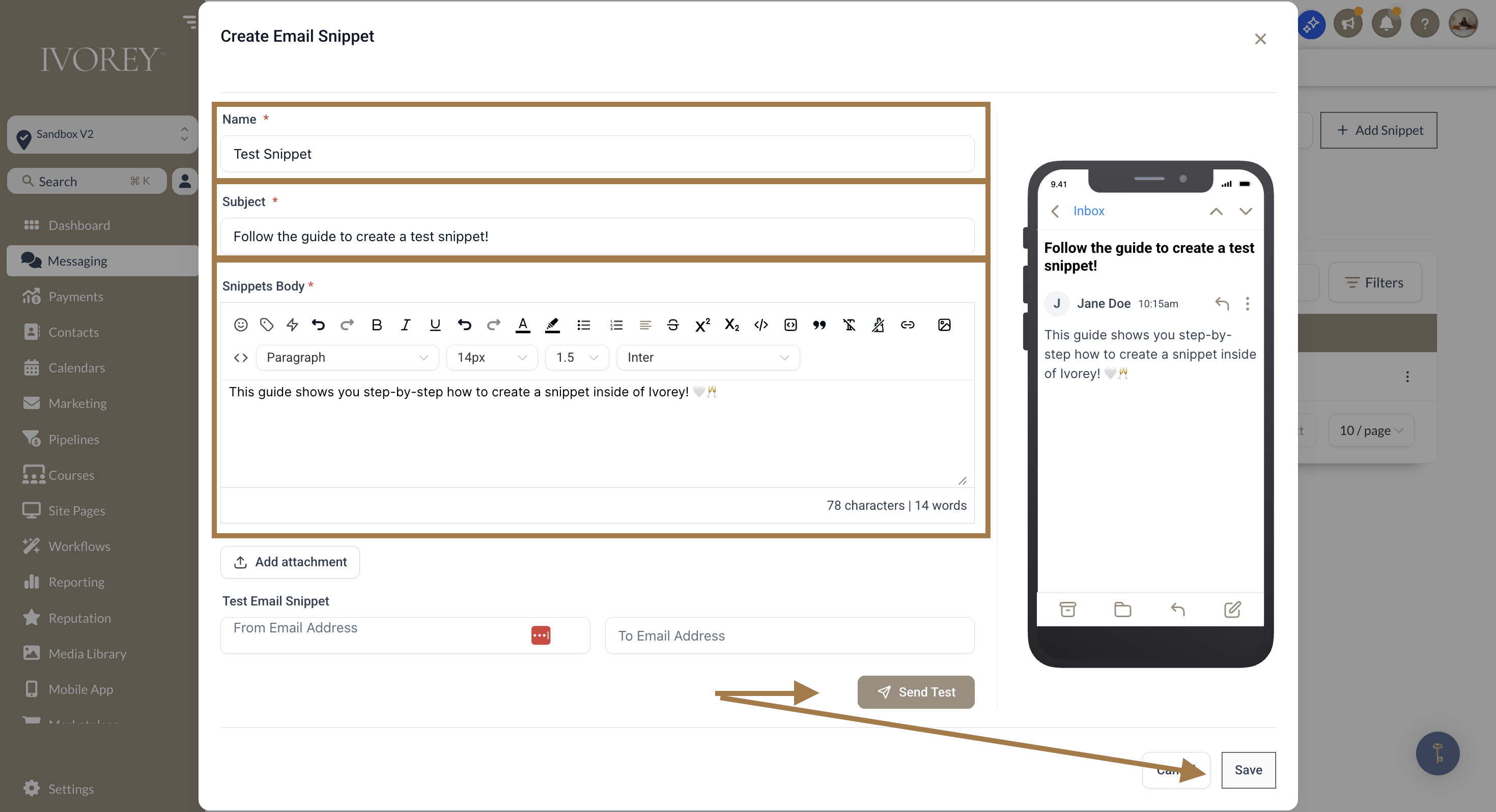
Add the snippet name, a subject line (if creating an email snippet), and body text, as well as any relevant attachments if needed
Send yourself a test email or SMS to ensure you are happy with the formatting
Then click [Save] to save your snippet for future use
Below are the main ways you can use your snippets inside of Ivorey™. Please click on each drop down to learn more:
Option 1: Add snippets to the 'message box' via the contact profile for email
From the Ivorey™ main menu, go to Contacts > and click into the contact profile you want to send the message to
Make sure the [Email] option is selected at the top of your message box
Click the 'Snippet' document icon located at the bottom of your message box window to select the snippet you'd like to add:
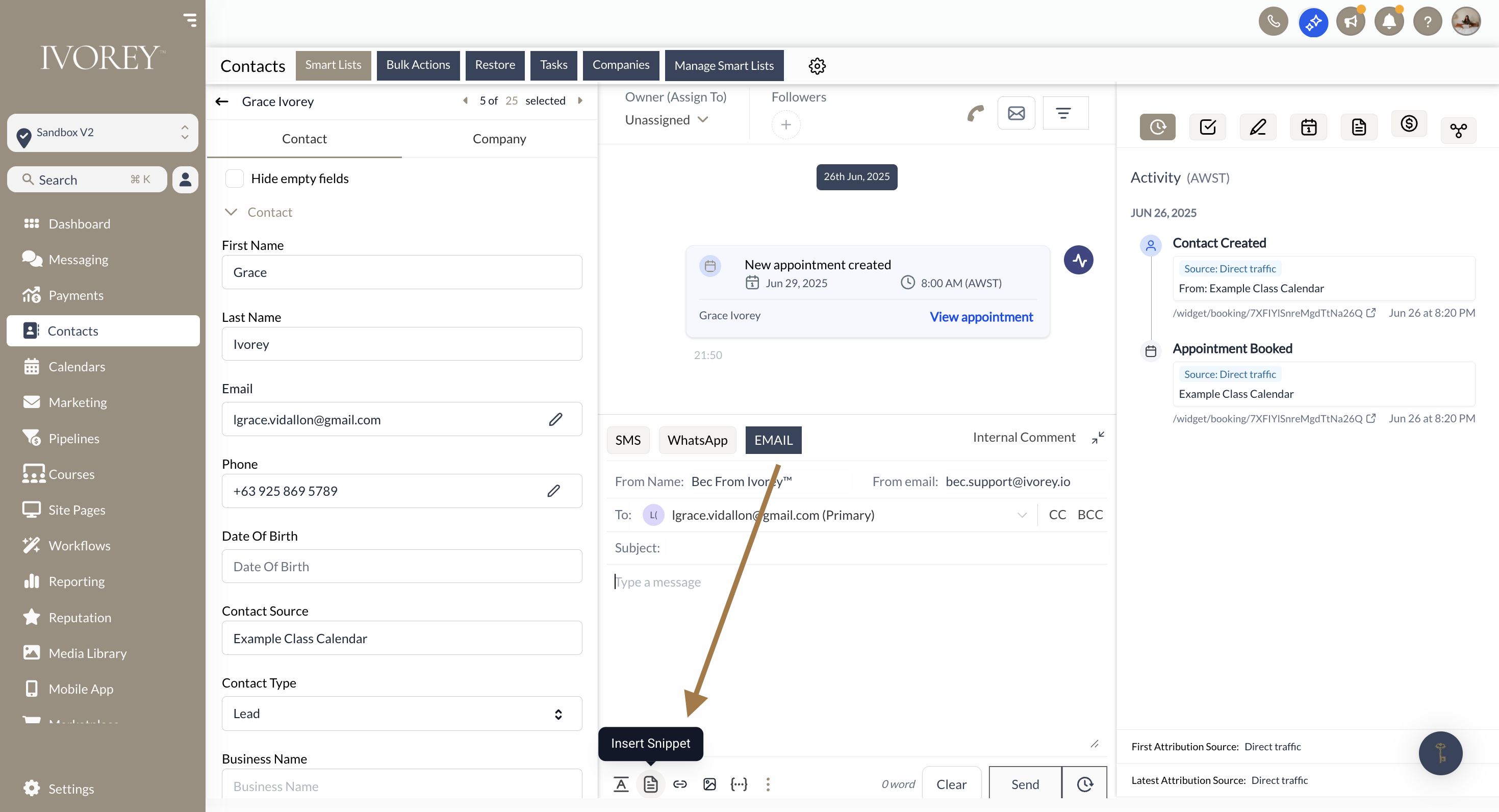
Select your Snippet from the snippet menu and then customise your email as needed
To add additional snippets into the same email, repeat steps 3 and 4 above
Click the [Send] button to send your email to the contact
Option 2: Add snippets to email templates
From the Ivorey™ main menu, go to Marketing > along the top menu bar click [Emails] > then click [Templates]
Click into the email template you want to add the snippet to
Click into the text element of the email template, or drag and drop the text element on to your page
Click the [Snippet] document icon located at the top of your editor menu bar
Select your Snippet from the snippet menu and then customise your email as needed
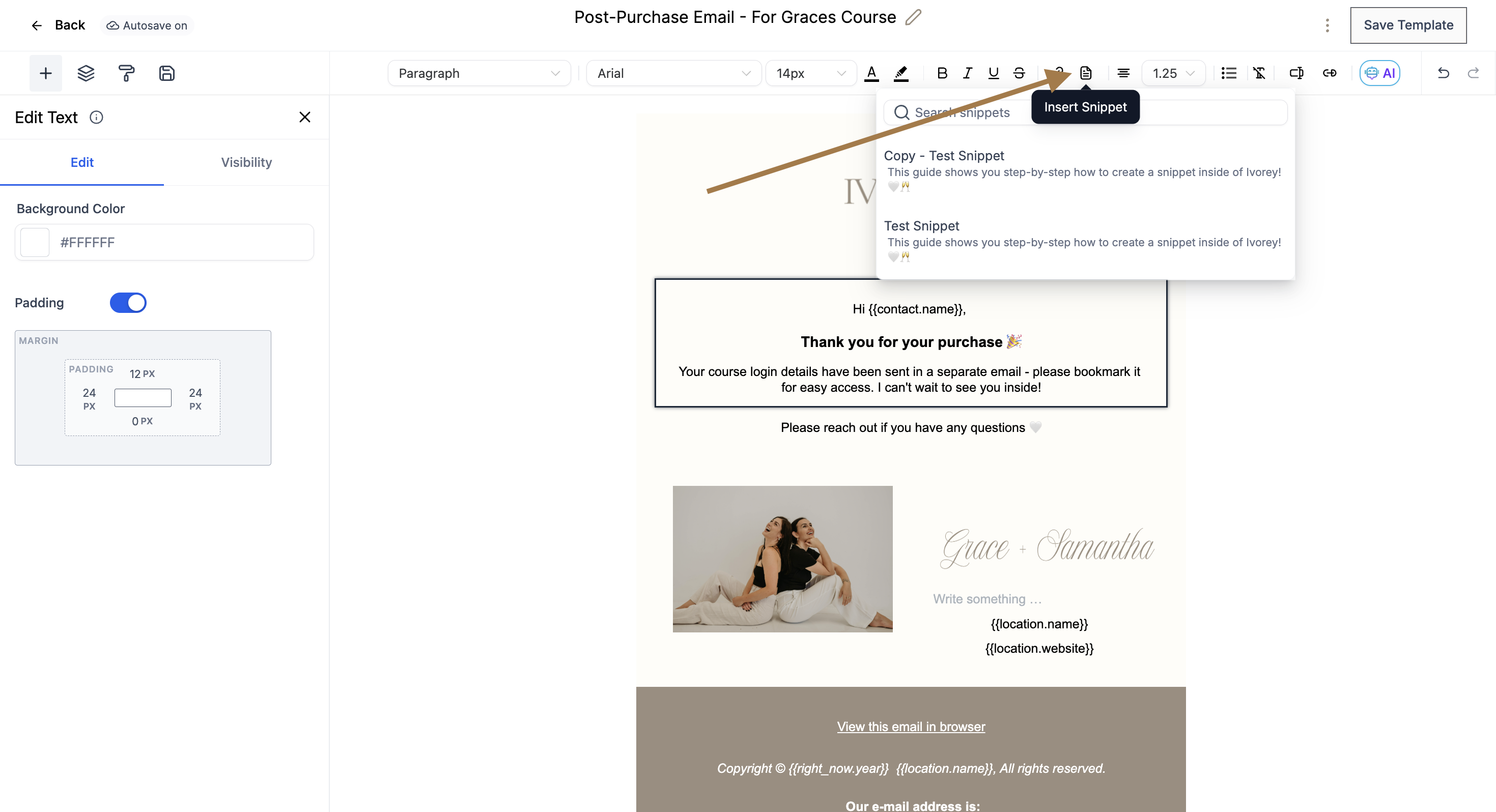
Click [Save Template] to update your changes
Option 3: Add snippets to the 'message box' via the contact profile for SMS
From the Ivorey™ main menu, go to Contacts > and click into the contact profile you want to send the message to
Make sure the [SMS] option is selected at the top of your message box
Click the 'Snippet' document icon located at the bottom of your message box window to select the snippet you'd like to add:
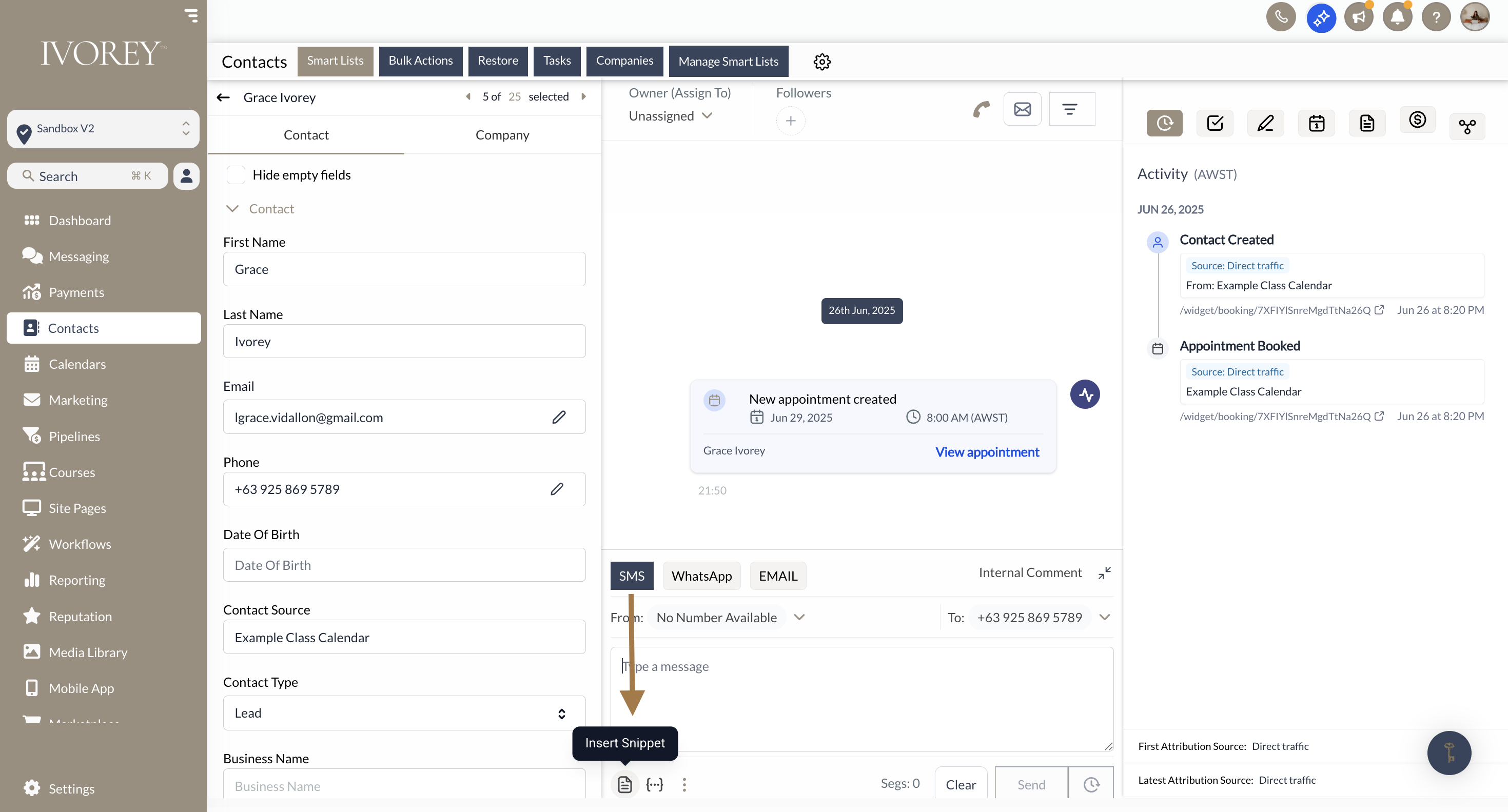
Select your Snippet from the snippet menu and then customise your SMS as needed
To add additional snippets into the same SMS, repeat steps 3 and 4 above
Click the [Send] button to send your SMS to the contact
Yes, text snippets can be inserted into both email templates and campaigns. However please note that attachments linked to snippets will not be included when inserted into email templates. Only the text content will appear.
Attachments will be automatically included when you insert a snippet in a campaign email. This makes it easy to consistently deliver resources like PDFs, brochures, or product guides.
Yes, you can organise snippets into folders by going to Messaging > [Snippets] > [Add Folder] > then organising your snippets into the relevant folder
There are currently no published limits, but best practice is to keep your snippet library organised for a streamlined user experience.
Snippet creation and editing permissions depend on your account’s user roles and settings. You can edit these as needed by going to Settings > Team > clicking the pencil icon of the team member > then navigating to Roles and Permissions to customise accordingly.
Hit the support chat widget inside Ivorey™ - we can:
Walk you through any of the steps
Troubleshoot anything that’s not working
We’re here and ready to help via the chat widget in the bottom right of your Ivorey™ account. Or if you are looking for done-for-you support, you can browse our current services here 🤍
