This article is one step from our Master Help Guide: All About Events. We recommend starting with the visual walkthrough video and examples inside the Master Help Guide before diving into the technical breakdown below.
Each Master Help Guide acts as your project plan – teaching you the feature, laying out the steps in the right order, and linking to every resource you’ll need along the way.
This guide is perfect if you want to:
Welcome attendees at the door by scanning their ticket QR code
Check attendees in by name when a ticket has been lost or won't scan
Give attendees an easy way to keep their ticket on their phone
Keep an accurate record of who arrived at your event

On the day of your in-person event, you and your team can check attendees in from your phone. Scan each attendee's QR code as they arrive, or check them in manually if their ticket won't scan or has been lost.
Open the LeadConnector app on your phone > tap Apps in the bottom menu > and under Marketing & Growth, tap [Events]
Under the Active tab, tap on the event you want to check attendees into. At the top of your event, the Checked in tracker shows how many attendees have arrived so far (e.g. 1/5)
To check an attendee in with their QR code, tap [Scan to check in] at the bottom of your screen > and scan the QR code on their ticket or wallet pass. The attendee is checked in as soon as the code is scanned
Note: Attendees can show the QR code from their ticket PDF, or from their Apple Wallet or Google Wallet pass. Both use the same QR code.
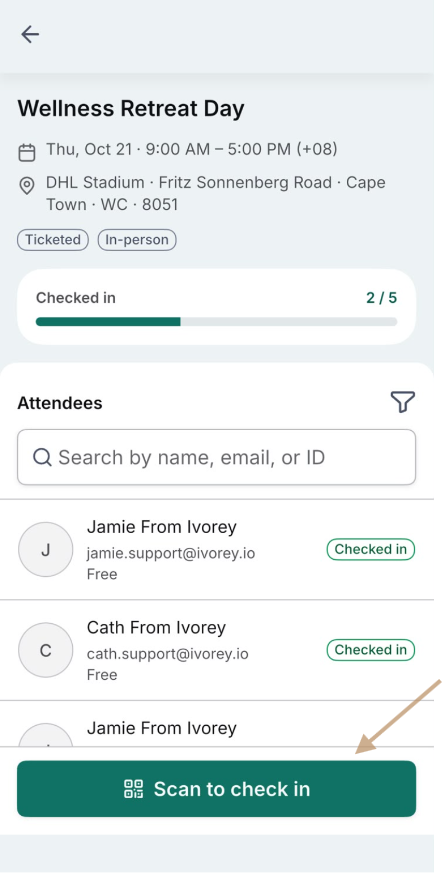
To check an attendee in manually, first verify their identity > find them in your Attendees list, or type their name, email, or ID into the [Search by name, email, or ID] bar > tap on the attendee > and tap [Check in] under their ticket
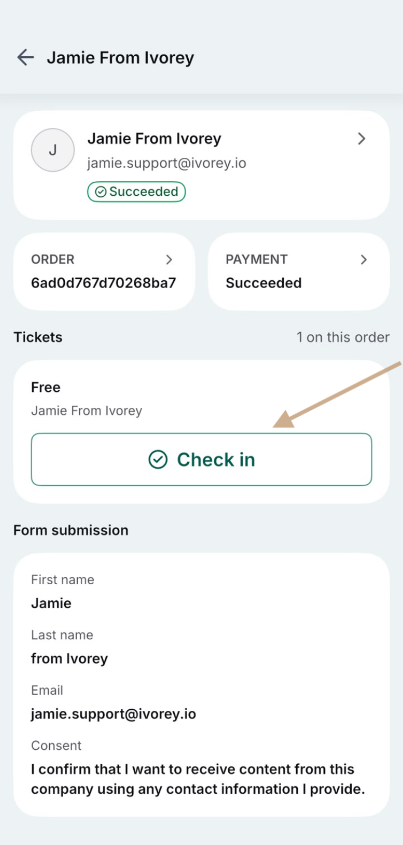
Note: Once checked in, a Checked in label displays next to the attendee, along with the date, time, and who checked them in. You can also see the attendee's form submission details from this view.
While your team checks attendees in at the door, the Check-in tab inside your event gives you a live view of attendance. You can see who has arrived, when, and how they were checked in.
From the main Ivorey™ menu, go to Courses > [Events] > and click on the event you’re tracking
Click on the [Check-in] tab along the top, where you'll see:
Attendance - the percentage and number of attendees checked in, plus a breakdown by ticket type
Live Feed - each check-in as it happens
Staff Performance - check-in activity for your team
Below this, your attendee list shows each attendee's Ticket details, Check-in status, Check-in time, and check-in Method. To find someone, type their name or email into the [Search by name or email] bar > or click [+ Add filter] to narrow down your list
Click [Seats] or [Registrations] to change how your list displays
Click [Refresh] at the top right-hand corner of your screen to load the latest check-ins
To check an attendee in from your computer, click the [⋮] three dots in the Actions column > and select [Mark as checked in]. From this menu, you can also click [View details] to see their registration, or hover over [Resend confirmation] to send their confirmation again.
Note: The Check-in tab only displays for in-person events.

If you scan the same ticket twice, the LeadConnector app will show that the attendee has already been checked in, so your team can see straight away that the ticket has been used.
If you scan a ticket for a different event, the app will show that the ticket is not valid, and the attendee won't be checked in to the event you're scanning for.
Hit the support chat widget inside Ivorey™ - we can:
Walk you through any of the steps
Troubleshoot anything that’s not working
We’re here and ready to help via the chat widget in the bottom right of your Ivorey™ account. Or if you are looking for done-for-you support, you can browse our current services here 🤍
