This article is one step from our Master Help Guide: All About Events. We recommend starting with the visual walkthrough video and examples inside the Master Help Guide before diving into the technical breakdown below.
Each Master Help Guide acts as your project plan – teaching you the feature, laying out the steps in the right order, and linking to every resource you’ll need along the way.
This guide is perfect if you want to:
Give attendees a full or partial refund when their plans change
Remove attendees who can no longer attend and free up their seats
Keep a clear record of every ticket refund for you and your team
Decide whether refunded attendees can still check into your event
Each registration has its own record, so you can see exactly what an attendee booked and step in when their plans change. Refunds can only be processed by you, as attendees aren't able to request a refund through your event page.
Before making any changes, check what your attendee booked and paid for. This is also where you can confirm that a refund has gone through.
From the main Ivorey™ menu, go to Courses > [Events] > and open the event you want to manage
Click on the [Registrations] tab along the top > find the registration you would like to review (or search for it using the [Search name or email] bar) > click the [⋮] three dots in the Actions column > and select [View details]
The Registration details panel opens, showing the attendee's contact details, number of tickets, and registration status. Use the tabs to view more information:
Registration - when they registered, the source of the registration, who booked it, and their contact ID
Form submission - the checkout form used (e.g. Default checkout) and who booked the registration
Payment details - the order ID, transaction ID, registration date, order total, payment status, and any order details. If a refund has been issued, the Refund history also displays here, including the refund amount, refund status, and the date and time of the refund
Tickets & add-ons - the purchaser, each ticket seat with its ticket type and attendee, and any add-ons included
You can refund the full amount your attendee paid, or only a portion of it. You can also choose whether they stay registered for your event once their refund is processed.

From the main Ivorey™ menu, go to Courses > [Events] > and open the event you want to manage
Click on the [Registrations] tab along the top > find the registration you would like to refund > click the [⋮] three dots in the Actions column > and select [Initiate refund]
Note: The Initiate refund option only displays for paid ticket registrations.
In the Refund registration pop-up:
Under Tickets in this registration, tick the ticket(s) you would like to refund, and use the [-] and [+] buttons to set the quantity
Check the refund Amount. For a partial refund, enter an amount lower than the full refundable amount
If you would like to, add Notes about the refund. These are saved on the payment record and shown in the refund history
Choose what happens to the registration:
Leave Also cancel this registration unticked to refund your attendee and keep them registered for your event
Tick Also cancel this registration to refund your attendee and cancel their registration. A cancellation warning displays, so review it carefully before you continue, as a cancellation can't be undone
Click the [Refund] button, which displays the amount being refunded
Note: The refund is returned to the attendee's original payment method. The pop-up displays an estimated timeframe (e.g. 4 to 6 business days), but the exact timing depends on your payment processor.
To confirm your refund has gone through, open the registration's [View details] panel (as outlined in Step 1) > click the [Payment details] tab > and check the Payment status and Refund history
You can decide whether attendees who have been refunded can still check in with their QR code. This is helpful when you would still like to welcome some refunded or partially refunded attendees on the day.
From the main Ivorey™ menu, go to Courses > [Events] > and open the event you want to manage
Click on the [Settings] tab along the top > select [Registration] > and navigate to Check-in Settings
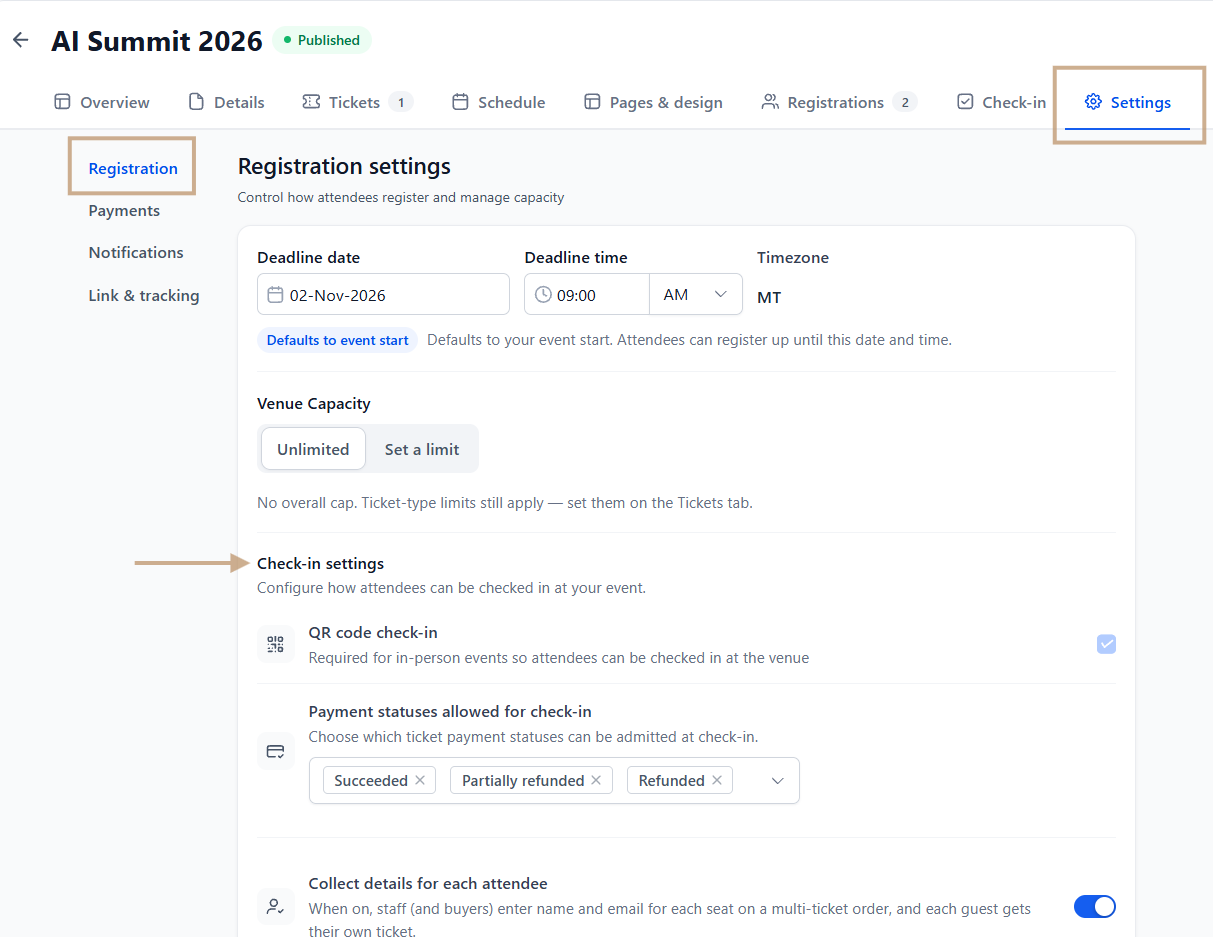
Under Payment statuses allowed for check-in, click on the dropdown to select each payment status that can check in by QR code:
Succeeded - paid registrations that haven't been refunded
Partially refunded - registrations that have received part of their payment back
Refunded - registrations that have received a full refund
Processing - registrations with a payment that is still being processed
Pending - registrations with a payment that hasn't been completed yet
Note: If you select only Succeeded, attendees with a refunded or partially refunded payment won't be able to check in by QR code.
4. Click [Save changes]
Note: Cancelled registrations can't check in, whichever statuses you select, as their QR passes stop working once the registration is cancelled.
Cancelling a registration removes your attendee from your event. You can cancel without issuing a refund, or refund the registration at the same time.

From the main Ivorey™ menu, go to Courses > [Events] > and open the event you want to manage
Click on the [Registrations] tab along the top > find the registration you would like to cancel > click the [⋮] three dots in the Actions column > and select [Cancel registration]
Review the cancellation warning, which shows how the cancellation affects the attendee's seats and QR passes
If you would like to, add a Reason for the cancellation. This is saved on the registration record for your team, and isn't sent to the attendee
Choose whether to refund the registration:
Leave Also refund this registration unticked to cancel without issuing a refund
Tick Also refund this registration to refund your attendee as well
Click [Cancel registration] to confirm, or [Keep registration] if you've changed your mind
Note: If an attendee would like to transfer their ticket to someone else, cancel their original registration > then add the new attendee manually.

No. Cancelling your event doesn't trigger a refund automatically. You have to select to Also refund this registration at the time of cancellation in order to issue the refund simultaneously. Alternatively, you can issue the refund separately, following the steps above.
Yes. The Revenue figure for your event reflects the amount your attendees actually paid, after any coupon codes or discounts are applied.
Hit the support chat widget inside Ivorey™ - we can:
Walk you through any of the steps
Troubleshoot anything that’s not working
We’re here and ready to help via the chat widget in the bottom right of your Ivorey™ account. Or if you are looking for done-for-you support, you can browse our current services here 🤍
