This article is one step from our Master Help Guide: All About Proposals & Invoices. We recommend starting with the visual walkthrough video and examples inside the Master Help Guide before diving into the technical setup below.
Each Master Help Guide acts as your project plan - teaching you the feature, laying out the steps in the right order, and linking to every resource you’ll need along the way.
This guide is perfect if you're looking to:
Build a customised template you can use for every invoice, saving time by including products, notes, attachments, bank details, or terms and conditions
This video will walk you through how to create an invoice template that you can use each time you need to send an invoice to a customer. This is really helpful when you need to add extra notes, manual bank account details, or terms and conditions to your invoices. You only need to set this up once instead of having to add manually each time you want to send an invoice.
From the Ivorey™ main menu, go to [Payments] > hover over [Invoices & Estimates] > then select [Templates]
Click on the [+ New Template] button on the top right of your page
Starting from the top of your screen, rename your Invoice e.g. Invoice Template
Next click the [+ Add Product] button under the 'Add Products' section (you need to add a product to your template to be able to save the invoice as a template and can change this product when you need to send to a customer)
(Optional) Under 'Additional Options' you can add any Notes, Attachments or Terms and Conditions if that is relevant for your business by ticking the [Terms and Conditions] box
Note: To add payment processing fees (e.g. Stripe fees) on-top of credit card payments, check the box that says "Charge processing fees" under "Additional Options"
Next click the [Save] button in the top right corner. Your invoice will now display under your templates tab
To use this template, click into the invoice template and in the top right corner you'll click on the [Use Template] button
Note: To delete an invoice please go to [Payments] > [Invoices] > [All invoices] > click on the 3 dots of the invoice > then click 'void':
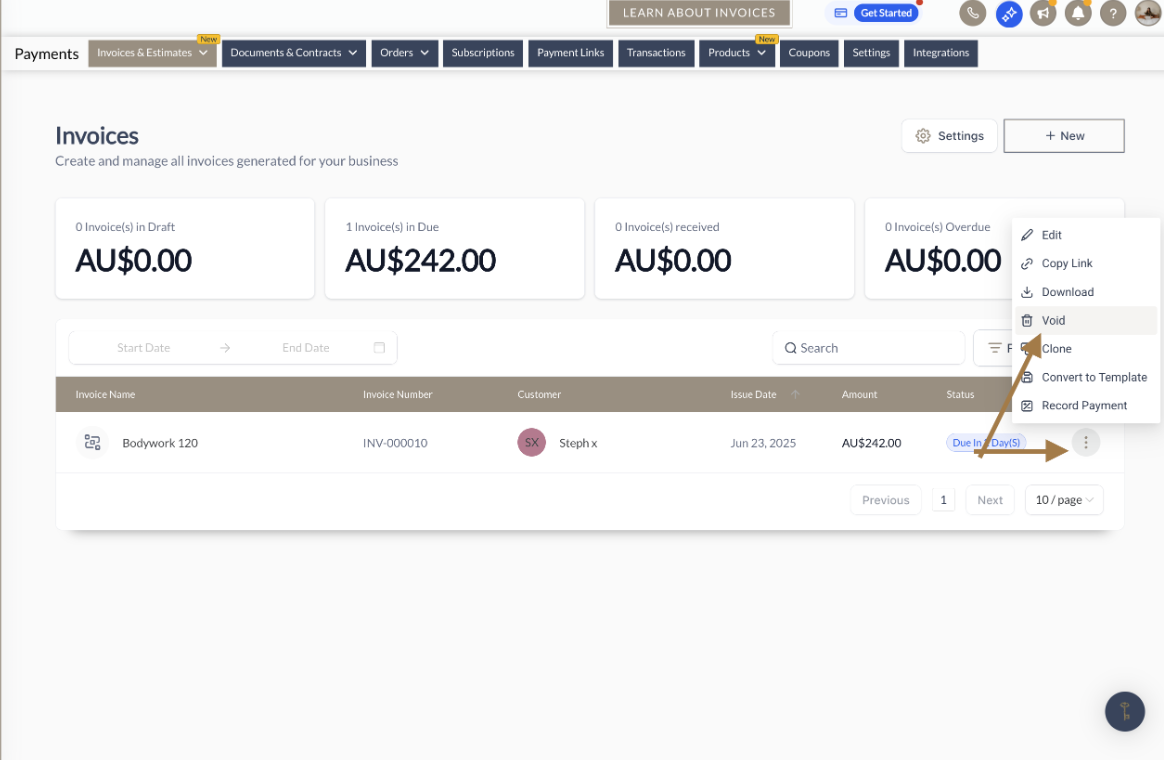
Note: To manually update an invoice as paid please go to [Payments] > [Invoices] > [All invoices] > click on the 3 dots of the invoice > then click 'Record Payment' > here you can enter the amount paid and the method payment was collected

You can monitor if someone has paid an invoice, or if it's overdue, by going to [Payments] > [All Invoices]. You can then filter all invoices by date, export invoice, and view the status of each individual invoice. It will also tally up the total amount of invoices sitting in draft, paid, due and overdue.
If a subscription payment fails, an invoice is automatically generated and emailed to the client. The client can open the invoice and either pay using an existing saved payment method or add a new card. If a new card is added, it will automatically be saved and set as the default payment method for all future subscription payments.
The system will attempt to process the subscription payment again automatically. By default, there are three retry attempts, with each retry occurring one day apart, based on the system’s retry settings.
Yes! Once your invoice template is set up, you can reuse it each time you send an invoice, saving you from manually adding the same details repeatedly.
Absolutely! Under Additional Options, you can add notes, attachments, terms and conditions, or bank details to your invoice template to make sure all important information is included for your customers.
Go to Payments > Invoices & Estimates > All Invoices > Settings > Payment Settings tab. Click [Manage] under "Manage default stripe payment methods for your invoices" to update your main payment settings and set to bank transfers. Add your bank details to the terms and conditions section. Create a new invoice template to update the settings/payment options.
Once an invoice has been issued, there is no specific indicator, or toggle field that shows whether auto-payment is enabled for an invoice using a payment plan. Because invoices become locked financial records once sent, auto-payment behaviour cannot be viewed or changed afterward. Instead, it must be inferred based on how the invoice and payment plan were originally configured at the time of creation.
Hit the support chat widget inside Ivorey™ - we can:
Walk you through any of the steps
Troubleshoot anything that’s not working
We’re here and ready to help via the chat widget in the bottom right of your Ivorey™ account. Or if you are looking for done-for-you support, you can browse our current services here 🤍
