In Ivorey™, you can set up automations to send emails or to notify yourself or your team, when a lead visits a certain website or funnel page inside of Ivorey™.
This guide is perfect if you want to:
Follow up with someone who visited a sales page but didn’t purchase
Send an email or SMS based on a page view
Tag someone who visited a funnel or website page
In Workflows, you can set up an automation to track when a contact views a specific page in your funnel or site, then take whichever actions you choose. For example:
A lead visits your sales page
You wait a certain amount of time
If they haven’t purchased (based on a tag or another condition), you can send them a reminder, notify yourself, or add them to a follow-up sequence

From the Ivorey™ main menu, go to Workflows > click [+ Create Workflow] > and select [+ Start from Scratch]
At the top of the page, give your workflow a relevant name (e.g. Your Page Name View to Follow-up) > and click [+ Add New Trigger]:
Search for and select the [Funnel/Website PageView] trigger > under Filters, select [Funnel/Website] and [is] from the drop-down menus > and select your chosen funnel or website, from the drop-down menu
Click [+ Add filters] > select [Page] and [is any of] from the drop-down menus > and select the specific page (e.g. Sales Page), you would like to create a trigger for
Click the [Save Trigger] button, at the bottom
Click the [+] button to add an action > search for and select the [Wait] action > and choose the preferred length of time, from drop-down menu
Click the [+] button to add an action > search for and select the [If/Else] action. This allows you to create separate branches in your workflow. For example, after the Wait step, you might want to confirm whether they have purchased or not, before taking the next step:
On the first branch, select [Contact Details] > [Tags] from the first drop-down menu > set the operator to [Does not include] > and select your purchase tag/s from the drop-down menu
Note: you should have already set up tags for contacts who purchase your product/offer, so this is an easy filter to implement.
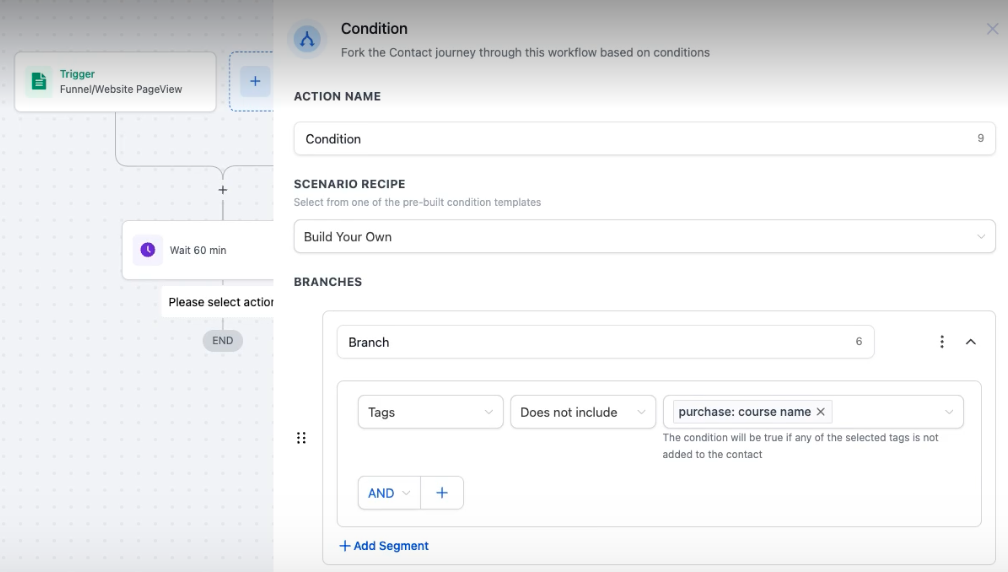
Note: the If/Else action will automatically create a branch for if none of the conditions are met, but if you want to create additional branches (i.e. if they have purchased the product/offer)
Now you can create specific actions, for each branch. For example, if you created a "Did Not Purchase" branch, click the [+] button under the branch, to add an action, such as:
Send Email - to email the contact and follow up
Send SMS - to send a quick reminder
Internal Notification - to notify yourself or your team
Add as many actions as you need/want
When you're done, toggle the workflow to [Publish], in the top right corner > and click [Save]
To test your workflow, make sure you are logged into a browser with an email you already have in your contacts (e.g. your personal Google profile) > visit the specific funnel/site page and scroll around, before closing > now go back into your workflow to the [Execution Logs] tab > check for any errors
Note: Remember that the workflow will wait for the amount of time that you set, before taking any actions you set (e.g. you might have to wait an hour, before checking to see if you received an email).
Hit the support chat widget inside Ivorey™ - we can:
Walk you through any of the steps
Troubleshoot anything that’s not working
We’re here and ready to help via the chat widget in the bottom right of your Ivorey™ account. Or if you are looking for done-for-you support, you can browse our current services here 🤍
