This article is one step from our Master Help Guide: All About Affiliate Marketing. We recommend starting with the visual walkthrough video and examples inside the Master Help Guide before diving into the technical setup below.
Each Master Help Guide acts as your project plan – teaching you the feature, laying out the steps in the right order, and linking to every resource you’ll need along the way.
This guide is perfect if you want to:
Pay out your affiliate commissions via PayPal, without having to leave Ivorey™

The below steps will give you a walkthrough of how you can set up your PayPal Payouts API in order to manage payouts directly from your Affiliate Dashboard.
Before you can start paying affiliates automatically, you need to configure PayPal Payouts for seamless integration with Ivorey™.

You must have a PayPal Business Account, and have it already connected to Ivorey™. Please refer to our Set Up Your Payment Processor guide for the detailed steps.
Go to the PayPal Developers page, and log in to the developer dashboard by clicking the [Log into dashboard] link at the top-right corner
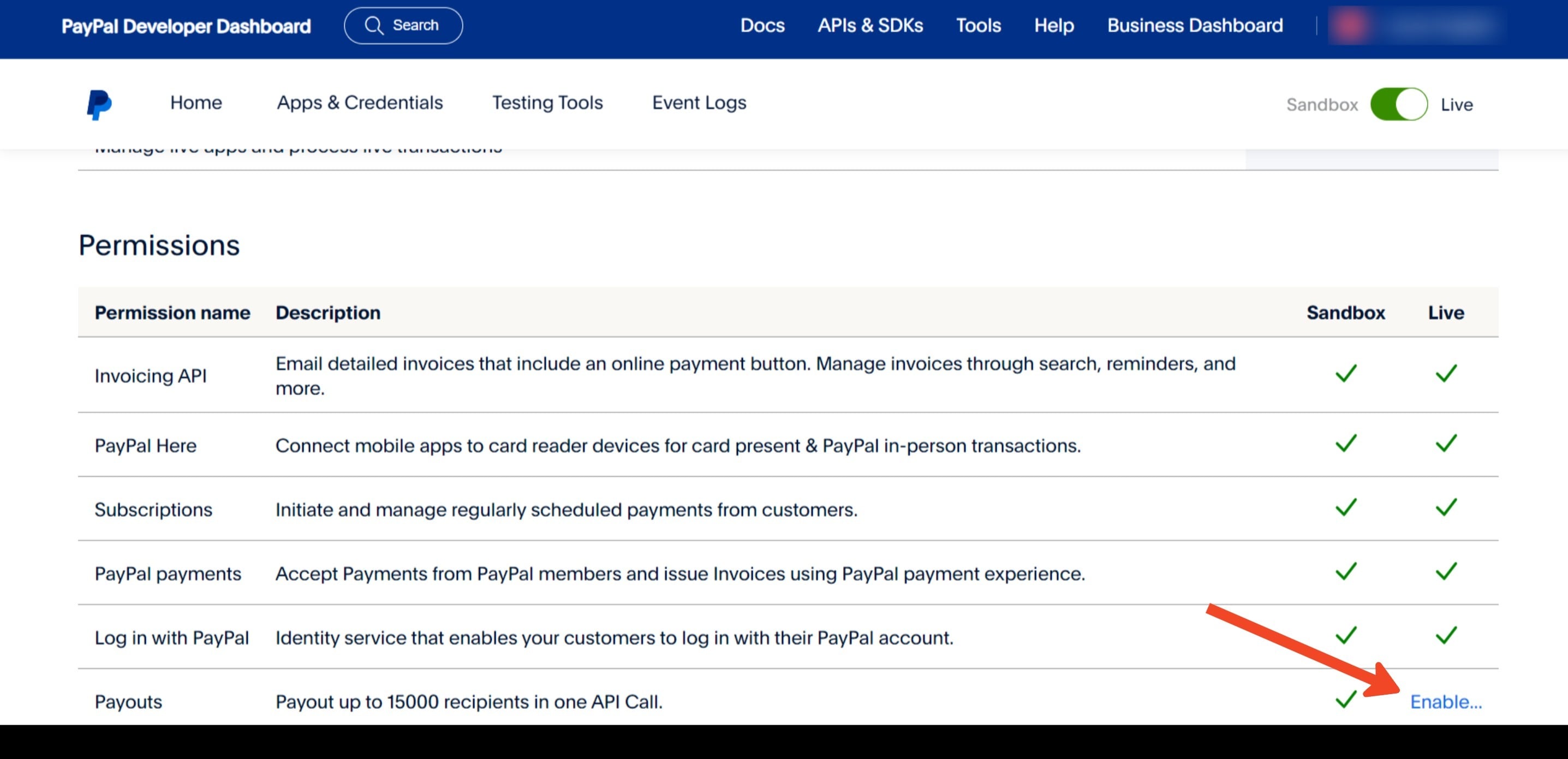
In the dashboard, click on [My Account] from the top-right corner > scroll down to the Permissions table and check if Payouts has a green checkmark under the Live column. If not, click [Enable] and follow the prompts (you may need to contact PayPal to enable the Payouts API)
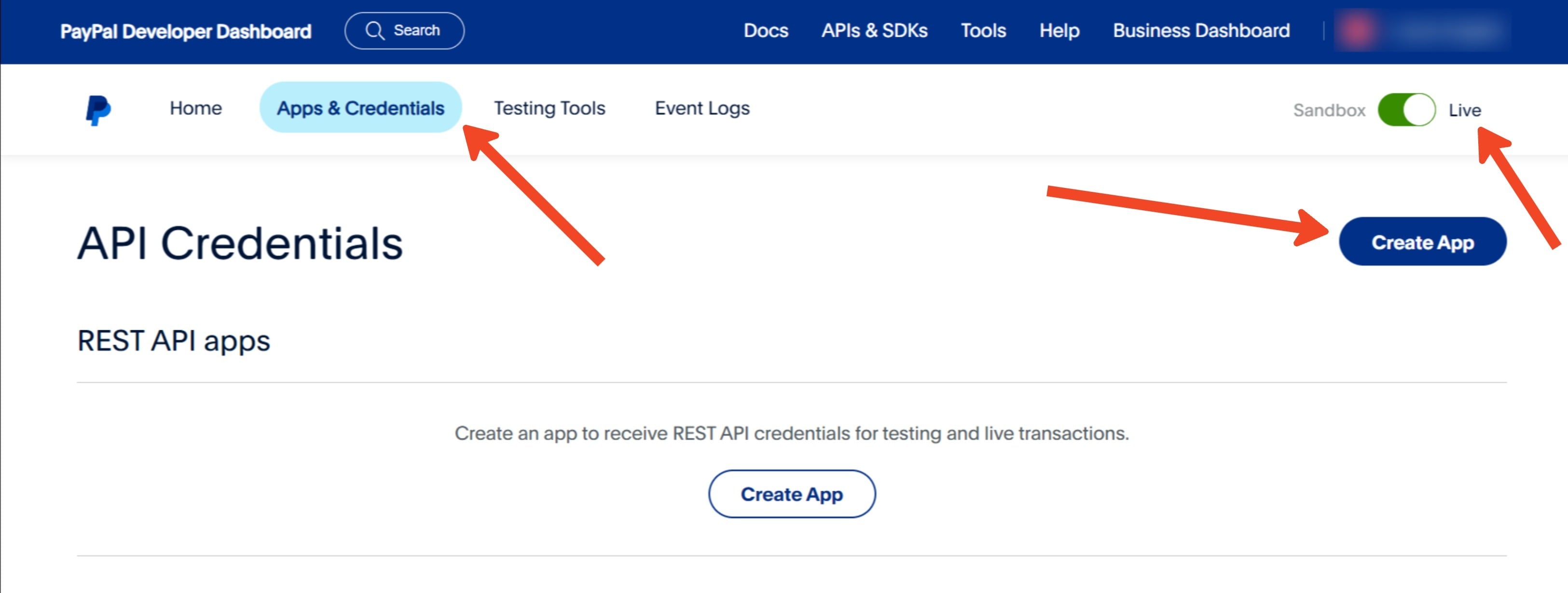
In the left-hand menu, click on [Apps and Credentials] > toggle to [Live] > then click [Create App]
Enter "IVOREY Payouts" as the app name > and click [Create App]
Note: If you already have an app created, you can skip this step.
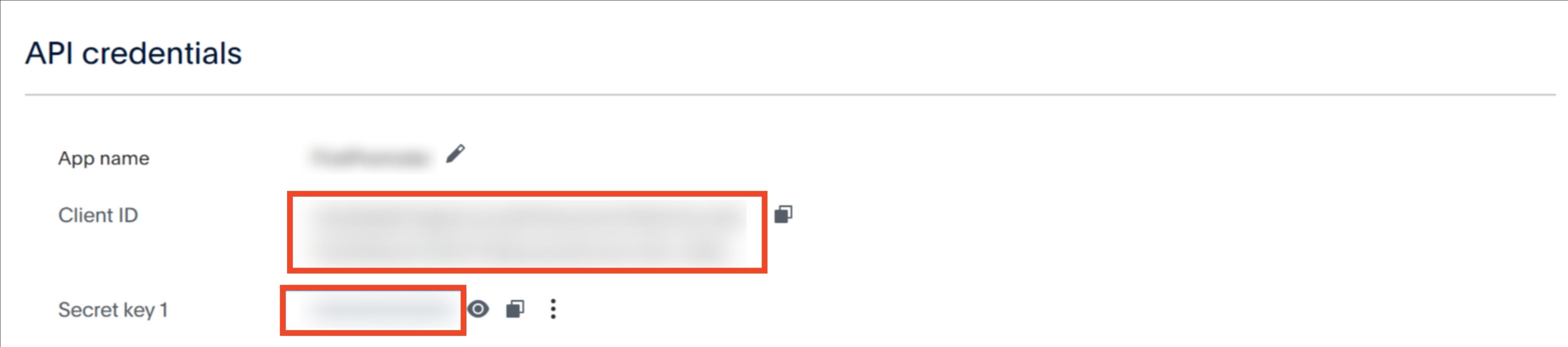
After creating the app, you'll be provided with the Client ID and Secret Key. Keep these details on hand as they will be required to connect Ivorey™ with PayPal
From the Ivorey™ main menu, go to [Payments] > [Integrations] > next to the PayPal integration, click [Manage] > and enter your Client ID and Secret Key in the Live window
Once PayPal is configured, you can now pay your affiliates using Ivorey's Auto Payouts feature.
From the Ivorey™ main menu, go to the [Marketing] > hover over the Affiliate Team tab along the top menu bar > and select [Payout]
Click on the [Approved for Payouts] tab, to see the list of approved payments awaiting disbursement:
Check the box next to the affiliates you wish to pay > and click the [Pay] button, to pay multiple affiliates at once
Alternatively, click the blue [Pay] button, to the right of an affiliate, to pay them individually
Review the selected payouts and confirm the details > click [Pay Now] to initiate the transfer
Note: If your PayPal business account is not linked an error message will prompt you to link your account.
Successful payouts will now appear under the [Paid] tab
Note: PayPal may take some time to process payments, during which the status might show as "Pending". Refresh the page to check for updates. After a successful payout, both you and the affiliate will receive a confirmation email from PayPal.

Hit the support chat widget inside Ivorey™ - we can:
Walk you through any of the steps
Troubleshoot anything that’s not working
We’re here and ready to help via the chat widget in the bottom right of your Ivorey™ account. Or if you are looking for done-for-you support, you can browse our current services here 🤍
