Google Analytics helps you understand how people interact with your website and funnels. When connected to Ivorey™ workflows, you can send key actions to Google Analytics, such as form submissions, bookings, and purchases, so you can track performance and better understand what’s driving results.
This guide is perfect if you want to:
Send workflow event data from Ivorey™ to Google Analytics 4
Track key actions using custom GA4 events
Test and confirm that events are being received correctly

Before adding Google Analytics to a workflow, you’ll need to retrieve the Measurement ID from your Google Analytics account, and create an API secret so Google Analytics can receive events from Ivorey™.
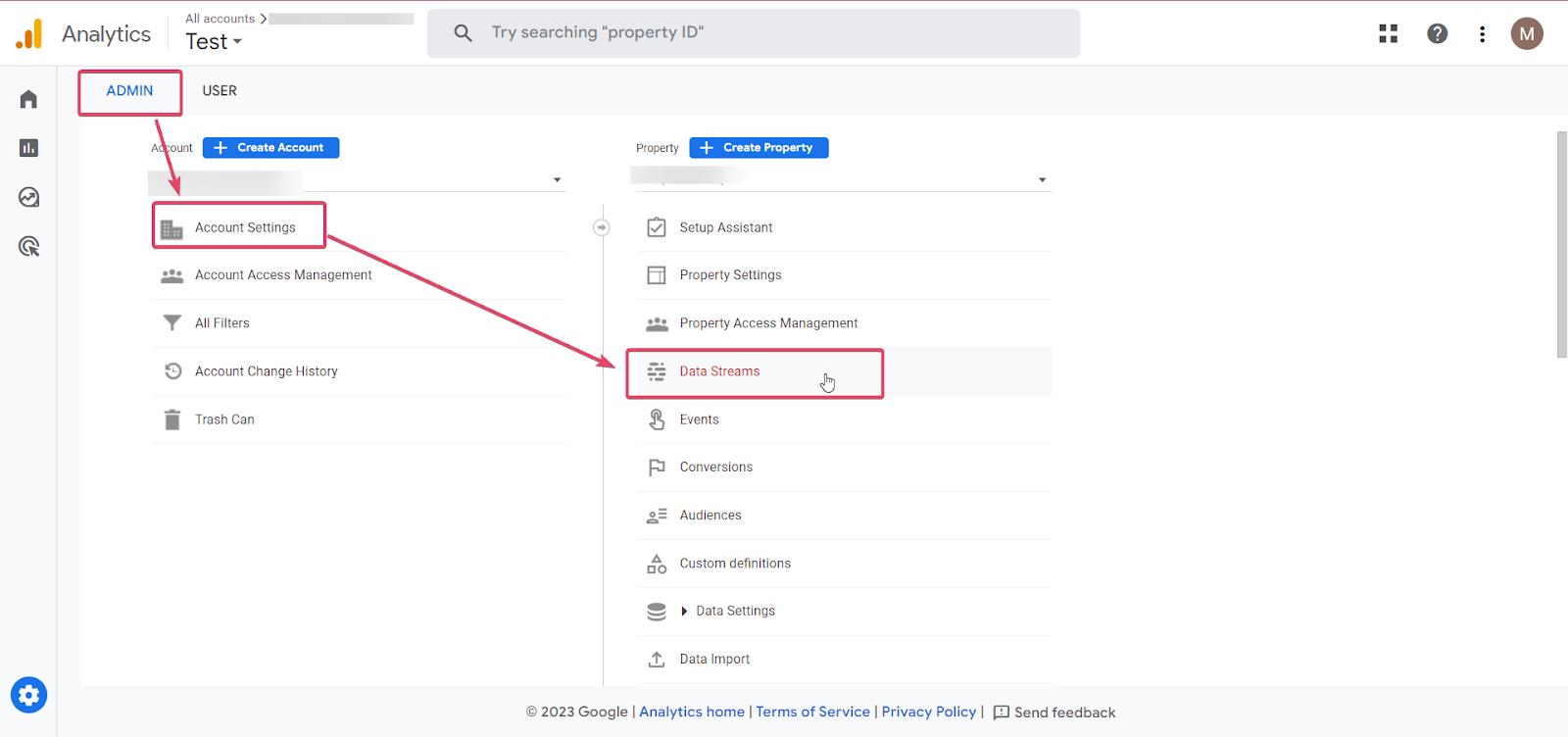
Log into your Google Analytics account > go to Admin > Account Settings > and under the Property column, click [Data streams]
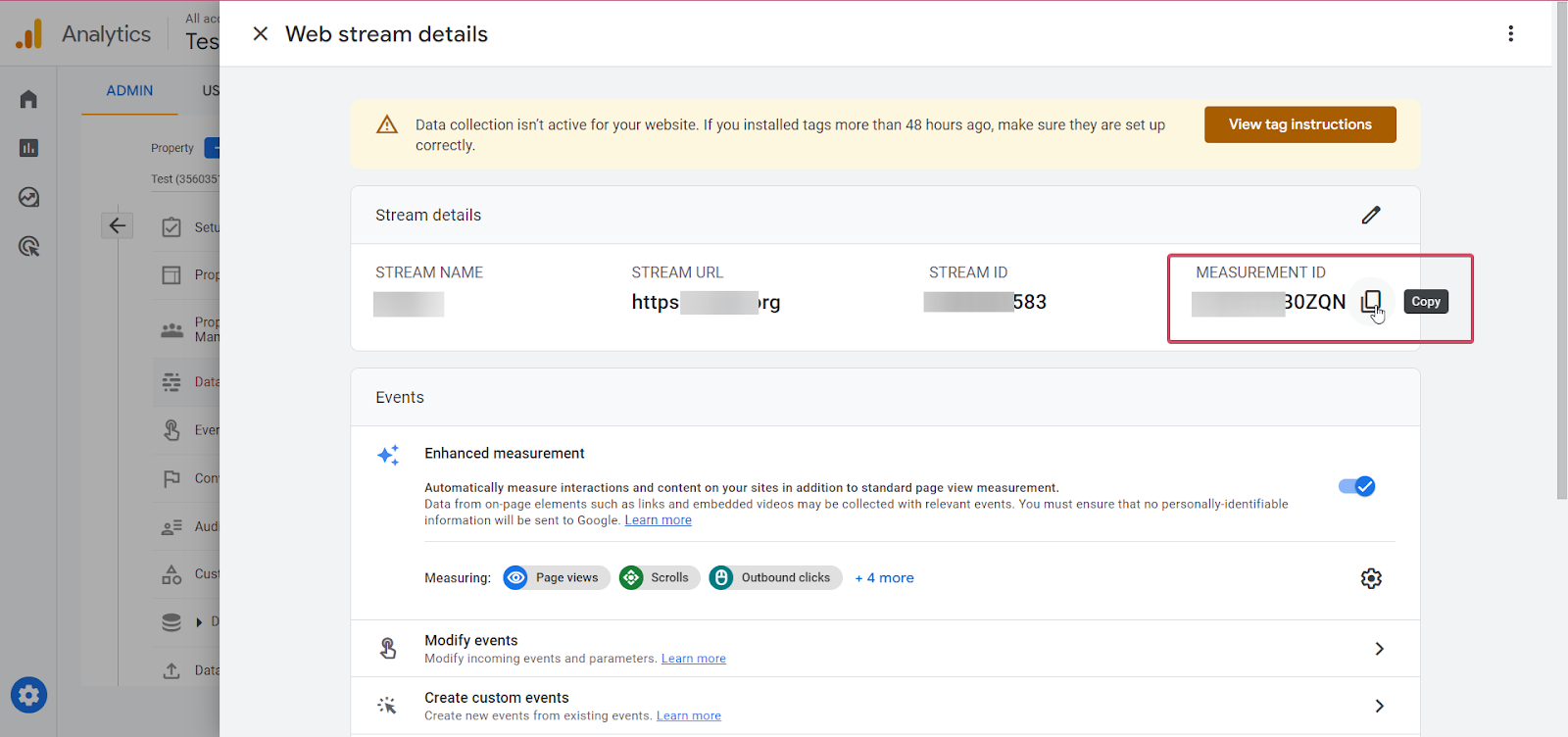
Select the appropriate data stream > copy your Measurement ID and paste it in a note or doc (you’ll use this later in your Ivorey™ workflow)
Note: Turn on Enhanced Measurement in your Data Stream settings to automatically track actions like scrolls, outbound link clicks, and file downloads.
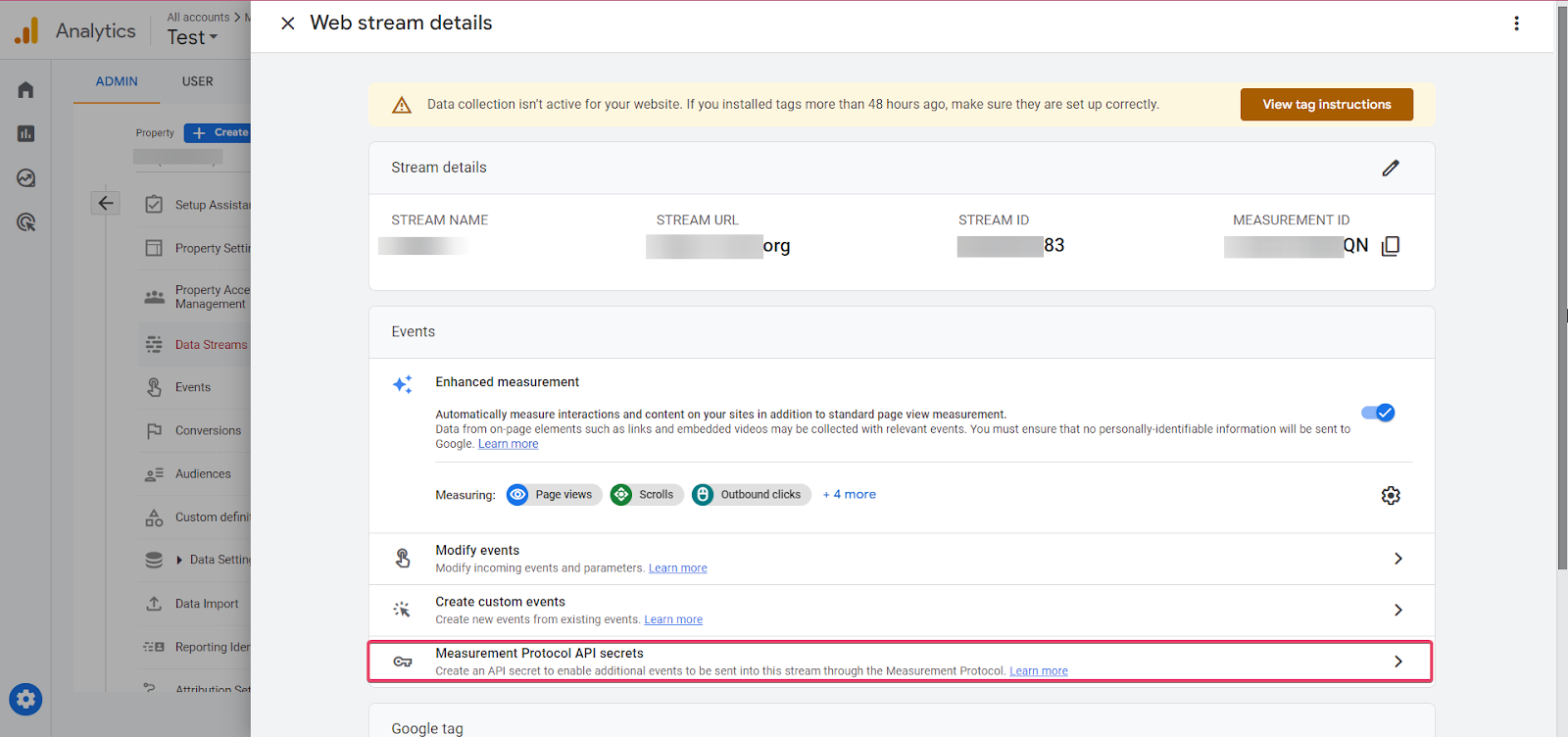
Scroll down and click [Measurement Protocol API secrets]
Before an API Secret can be created, you need to acknowledge that you have completed the necessary privacy discussions and have received the rights from your end users for the collection and processing of data. Click the [Review Terms] button, at the top right corner, and then click [I acknowledge]
Create a new API secret key, give it a nickname, copy the value and paste it in a note or doc (you’ll use this later in your Ivorey™ workflow)
Lastly, go to Admin > Data collection and modification > Data retention > choose a retention period that suits your needs (e.g. 14 months) > and make sure [Reset on new user activity] is enabled
Now you can connect Google Analytics in a new or already existing workflow, using the Measurement ID and API Secret you saved in the previous step.
From the main Ivorey™ menu, go to [Workflows] > click [+ Create Workflow] or open an existing one
At the top of the workflow, click [+ Add a Trigger] > and select the trigger you want to track, such as:
Form Submission - when a form is submitted, to send this event to Google Analytics
Page Visit - when someone visits a specific page, such as a product page, to track user behaviour
Product Purchase - when a product is purchased, to send purchase-related data, such as order value, to Google Analytics
Click the [+] icon to add an action > then search for and select [Add to Google Analytics] under Actions
In the dropdown menu, select [Google Analytics 4]
Paste the Measurement ID you copied from Google Analytics
Enter an Event Name that clearly describes the action you want to track (e.g. “lead_submitted”, “appointment_booked”, “checkout_completed”)
Note: Event names should follow Google Analytics naming rules - they are case-sensitive, should not include spaces, must start with a letter, and can only include letters, numbers, and underscores. Avoid using reserved Google Analytics event names.
Paste the API Secret you copied from Google Analytics
(optional) Add an Event Value related to the event, such as revenue amount or number of clicks, if needed
Note: Make sure there are no spaces before or after the Measurement ID or API secret, or the action will fail.
Click [Save Action] at the bottom
You can continue to build out your workflow with more actions, as needed, such as:
Send Email/SMS - After tracking an event such as “newsletter_signup”, send an email or SMS to deliver a welcome message or next steps
Add Contact Tag - After tracking a purchase event, add a tag (e.g. “Purchased: Product Name” or “VIP Customer”) to trigger other automations
Create/Update Opportunity - After tracking an “appointment_booked” event, move the contact into a sales pipeline stage (e.g. Booked Call)
Send Internal Notification - After tracking an application or form submission, notify yourself or your team
When you’re done, toggle the workflow to [Publish], in the top right corner > and click [Save]
Test your workflow by completing the trigger (e.g. send a test form submission) > check the [Execution Logs] tab to see if there were any errors > then check the Google Analytics dashboard, under the [Realtime] tab, to confirm your events are showing up correctly
If events are not showing up, double-check that the Measurement ID and API Secret are entered correctly without spaces. Verify that the event names match those configured in your workflow, and ensure that no filters are blocking data in your Google Analytics settings.
API Secrets can occasionally expire or need to be refreshed for security reasons. Reviewing and updating your API Secret from time to time helps ensure your Google Analytics integration remains active.
We recommend testing after any major change (like updating domains, editing events, or new campaigns) to ensure your data continues flowing correctly.
While you can see events instantly in the Realtime tab, Google Analytics 4 can take 24 to 48 hours to process that data and show it in your main Engagement or Events reports. If it’s working in Realtime, you’re all set!
Hit the support chat widget inside Ivorey™ - we can:
Walk you through any of the steps
Troubleshoot anything that’s not working
We’re here and ready to help via the chat widget in the bottom right of your Ivorey™ account. Or if you are looking for done-for-you support, you can browse our current services here 🤍
