Before you steam ahead setting up your Custom Values, here's some good-to-know information that will ensure you understand how Custom Values work in Ivorey™.
Custom Values let you pull in saved details automatically - like a contact’s name, appointment time, or your business information so you don’t have to type them out every time. You’ll usually use these in emails, SMS or workflows when you want things to feel personal or dynamic.
Think of Custom Values as smart placeholders. Instead of hard-coding information like your business name, booking link, support email, or offer details into multiple places, you store it once as a Custom Value and reuse it everywhere. When that value changes, it automatically updates everywhere it’s being used.
Custom Values are especially powerful for scaling, maintaining consistency, and reducing errors across your system, particularly if you’re running multiple offers, funnels, or client journeys.
You can use custom values in many places - such as emails, SMS, workflows, opportunities, invoices and more.
As your account grows, it’s important to keep your Custom Values organised.
Ivorey™ allows you to group Custom Values into folders, making it easier to manage and find what you need. Many users create folders for things like:
Business information
Links & URLs
Offers & pricing
Team or support details
Automation-specific values
Keeping your Custom Values organised ensures your system stays clean, scalable, and easy to maintain.

There is a custom value icon that you will see throughout the Ivorey™ platform, wherever the feature is available (emails, SMS, workflows, opportunities, invoices, etc.)
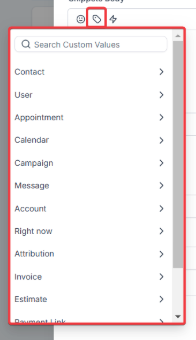
Details pulled from a contact record - like pre-populating a customers name into an email or SMS.
Example input: Hi #{{contact.first_name}}
Example output: Hi Sarah
• Full name: {{contact.name}
• First name: {{contact.first_name}}
• Last name: {{contact.last_name}}
• Email: {{contact.email}}
• Phone: {{contact.phone}} or {{contact.phone_raw}}
• Phone (Recommended for trigger links & UTM): Tel:{{contact.phone_raw}}
• Company name: {{contact.company_name}}
• Full Address: {{contact.full_address}}
• Address 1: {{contact.address1}}
• City: {{contact.city}}
• State: {{contact.state}}
• Postal Code: {{contact.postal_code}}
• Time Zone: {{contact.timezone}}
• Date of Birth: {{contact.date_of_birth}}
• Source: {{contact.source}}
• Website: {{contact.website}}
• ID: {{contact.id}}
The User is the team member assigned to a contact. Use this to sign-off emails or send appointment confirmations based on the assignee.
Example input: "See you tomorrow. Thanks, from {{user.first_name}}”
Example output: "See you tomorrow. Thanks, from Grace"
• Full Name: {{user.name}}
• First Name: {{user.first_name}}
• Last Name: {{user.last_name}}
• Email: {{user.email}}
• Phone: {{user.phone}} or {{user.phone_raw}}
• Signature: {{user.email_signature}}
• Calendar Link: {{user.calendar_link}}
• Appointment Phone: {{appointment.user.phone_raw}}
• Twilio Phone: {{user.twilio_phone_number}}
• Twilio Phone raw format: {{user.twilio_phone_number_raw}}
These are details from an appointment booked through an Ivorey™ calendar - such as time, date, location, and assigned team member. These are handy for sending confirmations and links to manage bookings.
Example input: "If you need to cancel, please use this link: {{appointment.cancellation_link}}
Example output: "If you need to cancel, please use this link: [actual cancellation link will appear]
• Title: {{appointment.title}}
• Start Date Time: {{appointment.start_time}}
• Start Date: {{appointment.only_start_date}}
• Start Time: {{appointment.only_start_time}}
• End Date Time: {{appointment.end_time}}
• End Date: {{appointment.only_end_date}}
• End Time: {{appointment.only_end_time}}
• Day of the week: {{appointment.day_of_week}}
• Name of the month: {{appointment.month}}
• Timezone: {{appointment.timezone}}
• Cancellation Link: {{appointment.cancellation_link}}
• Reschedule Link: {{appointment.reschedule_link}}
• Meeting Location: {{appointment.meeting_location}}
• Notes: {{appointment.notes}}
• Add to Google Calendar: {{appointment.add_to_google_calendar}}
• Add to Ical & Outlook: {{appointment.add_to_ical_outlook}}
• Recurring > Repeats: {{appointment.recurring.repeats}}
• Recurring > Times to repeat: {{appointment.recurring.times_to_repeat}}
• Assigned user > Full Name: {{appointment.user.name}}
• Assigned user > First Name: {{appointment.user.first_name}}
• Assigned user > Last Name: {{appointment.user.last_name}}
• Assigned user > Email: {{appointment.user.email}}
• Assigned user > Phone: {{appointment.user.phone}}
• Assigned user > Phone (raw format): {{appointment.user.phone_raw}}
• Assigned user > Signature: {{appointment.user.email_signature}}
• Assigned user > Twilio Phone: {{appointment.user.twilio_phone_number}}
Calendar custom values refers to the specific calendar where an appointment was booked. This helps when you have multiple calendars.
Example input: "A lead had booked a call through the {{calendar.name}} calendar"
Example output: "A lead has booked a call through the Sales Call calendar"
• Calendar Name: {{calendar.name}}
• Campaign Event Date & Time: {{campaign.event_date_time}}
• Campaign Event Date: {{campaign.event_date}}
• Campaign Event Time: {{campaign.event_time}}
These are the details you have setup for your business account with Ivorey™ e.g. your business name, address, logo, or contact info. These can be used for branded footers, invoice templates, or auto-filled business info in emails.
Example input: "For queries, please get in touch via {{location.email}}"
Example output: "For queries, please get in touch via [your business email address would appear here]"
• Account/Business name: {{location.name}}
• Full Address: {{location.full_address}}
• Address Line 1: {{location.address}}
• City: {{location.city}}
• State: {{location.state}}
• Country: {{location.country}}
• Postal Code: {{location.postal_code}}
• Email: {{location.email}}
• Phone: {{location.phone}}
• Phone (raw format): {{location.phone_raw}}
• Website: {{location.website}}
• Logo URL: {{location.logo_url}}
• Owner > First Name: {{location_owner.first_name}}
• Owner > Last Name: {{location_owner.last_name}}
• Owner > Email: {{location_owner.email}}
• Account ID: {{location.id}}
Pulls in the current date or time - perfect for personalising messages.
Example input: "Can you believe it's already {{right_now.month_name}}?! "
Example output: "Can you believe it's already July?!"
• Second: {{right_now.second}}
• Minute: {{right_now.minute}}
• Time 24h Format: {{right_now.hour}}
• Time AM/PM Format: {{right_now.hour_ampm}}
• AM/PM: {{right_now.ampm}}
• Day of the week (extended): {{right_now.day_of_week}}
• Month Name: {{right_now.month_name}}
• Day: {{right_now.day}}
• Month: {{right_now.month}}
• Month (extended): {{right_now.month_english}}
• Year: {{right_now.year}}
• Date (MM/DD/YYYY): {{right_now.middle_endian_date}}
• Date (DD/MM/YYYY): {{right_now.little_endian_date}}
• Day of the week: {{right_now.day_of_week}}
Tracks where a contact originally came from e.g. like the original ad, campaign, or webpage they visited (based on your tracking setup)
Example input: "New lead from: {{contact.attributionSource.utmMedium}}"
Example output: "New lead from: Paid Social"
• Session Source: {{contact.attributionSource.sessionSource}}
• URL: {{contact.attributionSource.url}}
• Campaign: {{contact.attributionSource.campaign}}
• UTM Source: {{contact.attributionSource.utmSource}}
• UTM Medium: {{contact.attributionSource.utmMedium}}
• UTM Content: {{contact.attributionSource.utmContent}}
• Referrer: {{contact.attributionSource.referrer}}
• Campaign ID: {{contact.attributionSource.campaignId}}
• FB Click ID: {{contact.attributionSource.fbclid}}
• Google Click ID: {{contact.attributionSource.gclid}}
• UTM Keyword: {{contact.attributionSource.utmKeyword}}
• UTM Match Type: {{contact.attributionSource.utmMatchType}}
• Ad Group ID: {{contact.attributionSource.adGroupId}}
• Ad ID: {{contact.attributionSource.adId}}
Tracks where a contact came from most recently.
Example input: "New lead from: {contact.lastAttributionSource.sessionSource}}"
Example output: "New lead from: Organic Search"
• Session Source: {{contact.lastAttributionSource.sessionSource}}
• URL: {{contact.lastAttributionSource.url}}
• Campaign: {{contact.lastAttributionSource.campaign}}
• UTM Source: {{contact.lastAttributionSource.utmSource}}
• UTM Medium: {{contact.lastAttributionSource.utmMedium}}
• UTM Content: {{contact.lastAttributionSource.utmContent}}
• Referrer: {{contact.lastAttributionSource.referrer}}
• Campaign ID: {{contact.lastAttributionSource.campaignId}}
• FB Click ID: {{contact.lastAttributionSource.fbclid}}
• Google Click ID: {{contact.lastAttributionSource.gclid}}
• UTM Campaign: {{contact.lastAttributionSource.utmCampaign}}
• UTM Keyword: {{contact.lastAttributionSource.utmKeyword}}
• UTM Match Type: {{contact.lastAttributionSource.utmMatchType}}
• Ad Group ID: {{contact.lastAttributionSource.adGroupId}}
• Ad ID: {{contact.lastAttributionSource.adId}}
Hit the support chat widget inside Ivorey™ - we can:
Walk you through any of the steps
Troubleshoot anything that’s not working
We’re here and ready to help via the chat widget in the bottom right of your Ivorey™ account. Or if you are looking for done-for-you support, you can browse our current services here 🤍
